Is your Google Business Profile Video Verification Failed or stuck during the verification process? Learn the most common reasons for video upload errors, rejected verification requests, and failed Google Business Profile verification, along with proven solutions to help you get verified successfully.
This complete 2026 guide explains Google Business Profile video requirements, troubleshooting tips, manual review options, and best practices to avoid future verification issues. Improve your Google Business Profile, strengthen your Local SEO, and get your business back on Google Maps quickly.
What Is Google Business Profile Video Verification?
Google Business Profile Video Verification is a verification method introduced by Google to confirm that a business is legitimate, operates at the listed location, and is managed by an authorized owner or representative. Instead of verifying through a postcard or phone call, Google may ask you to record a short, continuous video showing your business premises, branding, and evidence that you have access to and control over the business.
The purpose of video verification is to reduce fake listings, prevent spam, and improve the quality of information displayed on Google Search and Google Maps. During the recording, Google expects to see key details such as the street name, building number, permanent business signage, work equipment, inventory, or other proof that the business is actively operating. The video should be recorded in one continuous take without pauses or edits.
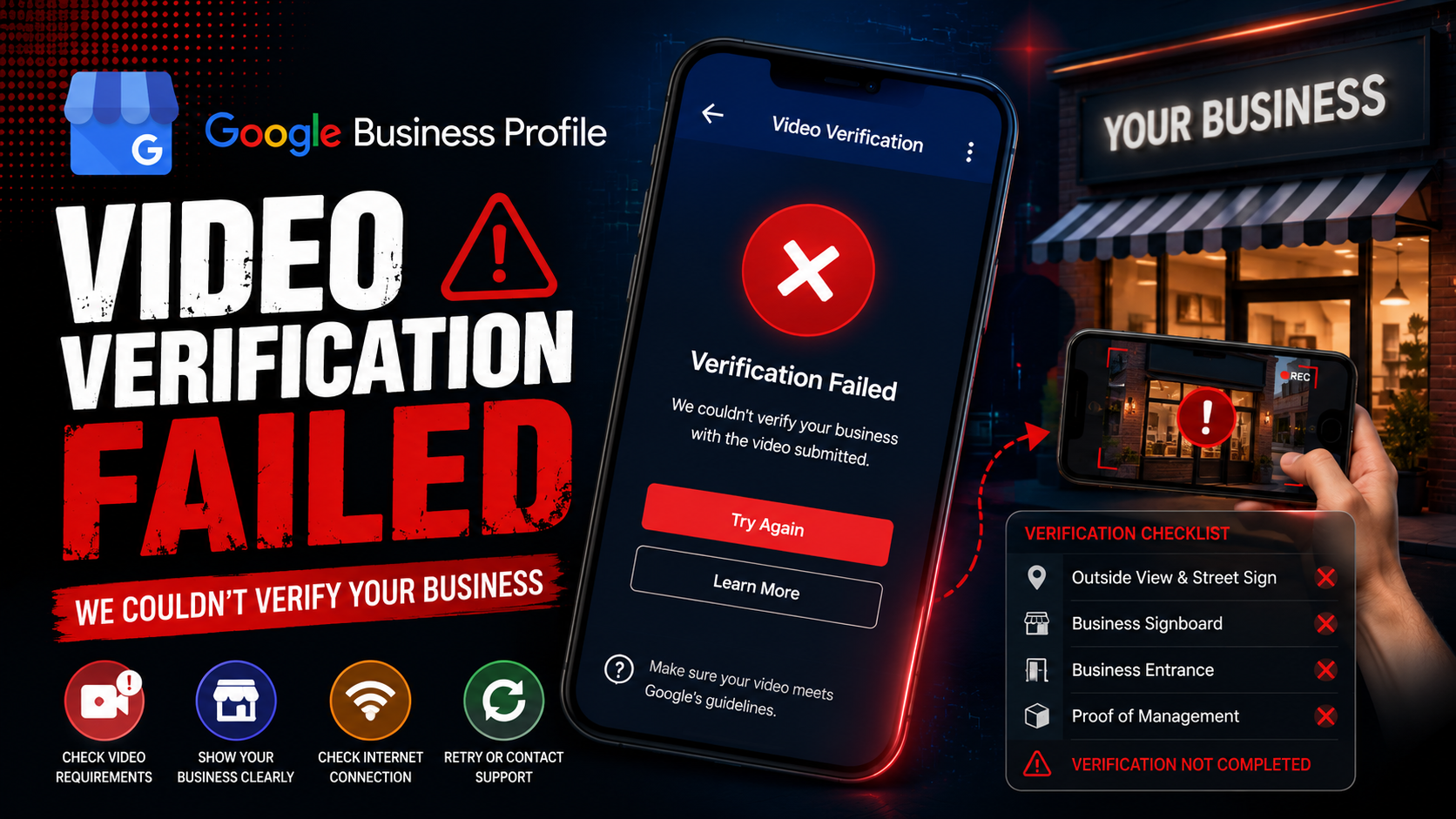
If the required information is missing or the video does not clearly demonstrate business ownership, you may encounter a Google Business Profile Video Verification Failed error. This can happen for several reasons, including poor video quality, unstable internet during upload, missing business signs, edited recordings, or a mismatch between the business details in your profile and what appears in the video. In some cases, users may also experience a Google Business Profile Verification Failed message if Google cannot confirm the authenticity of the business.
Another common issue is a Google Business Profile Video Upload Error, where the video fails to upload because of network interruptions, unsupported file formats, outdated Google Maps apps, or device-related problems. To improve your chances of successful verification, record the video using a mobile device with a stable internet connection, include all required business details, and upload the video directly through the Google Maps or Google Business Profile verification process. Following Google’s verification guidelines carefully can help you complete the process successfully and reduce the risk of repeated verification failures.
Google Business Profile Video Verification Failed: Top Reasons Why It Happens
A Google Business Profile Video Verification Failed message usually means Google could not verify your business based on the video you submitted. This does not always indicate a policy violation. In many cases, the verification fails because the video is incomplete, unclear, or does not provide enough evidence that the business is legitimate and managed by an authorized representative. Understanding the common reasons can help you avoid repeated verification attempts and improve your chances of approval.
One of the most common issues is a Google Business Profile verification stuck after video upload. This may happen when the uploaded video is still under review, the internet connection was unstable during the upload, or Google requires additional manual checks. If your verification remains pending for several days without any status update, review your Business Profile for notifications and ensure all business information is accurate and consistent.
Another frequent problem is a Google Business Profile video rejected notification. Google may reject a video if it does not clearly show the business location, permanent signage, street name, building number, or proof that you manage the business. Videos that are edited, paused, too dark, blurry, or recorded in multiple clips may also fail verification. Recording a single, continuous video with clear visuals and stable lighting significantly improves the chances of approval.
Many businesses also encounter Google Business Profile verification review issues after submitting a valid video. These review issues can occur if the business name, address, or category on the profile does not match what appears in the video. Businesses operating from virtual offices, shared workspaces, or locations without permanent branding may face additional scrutiny. Google may also request further verification if it cannot confidently confirm the business’s authenticity.
To reduce the risk of verification failure, record your video directly through the Google verification process, capture all required business details in one uninterrupted recording, use a reliable internet connection, and verify that your profile information matches your real-world business. Following Google’s verification guidelines carefully can help you complete the process successfully and avoid unnecessary delays or repeated verification requests.
Google Business Profile Video Requirements: Step-by-Step Verification Guide
Meeting Google Business Profile Video Requirements is essential for successfully verifying your business and avoiding delays or rejected submissions. Google uses video verification to confirm that your business is genuine, operates at the listed location, and is managed by an authorized representative. Recording a clear, continuous video that follows Google’s guidelines can significantly improve your chances of approval.
1. Start Outside the Business
Begin your recording outside your business location. Clearly capture the street signs, building number, and nearby landmarks so Google can confirm the exact address. If your business is inside a shopping complex or office building, include the entrance and surrounding area to make the location easy to identify.
2. Show Your Business Identity
Next, record your permanent business signboard displaying the official business name exactly as it appears on your Google Business Profile. Temporary banners, handwritten signs, or digital displays should not be used as your primary proof of business identity.
3. Show Proof of Management
Google also needs evidence that you manage the business. Record yourself unlocking the entrance, entering an employee-only area, operating the cash register, using a work computer, or showing business inventory, tools, or equipment. These actions demonstrate that you have authorized access to the business.
4. Record Everything in One Continuous Take
Your verification video must be recorded in one uninterrupted recording. Do not pause, trim, edit, or combine multiple clips. A continuous video provides Google with a clear view of your business and helps prevent verification issues.
5. Protect Privacy
While recording, avoid capturing customer faces, personal conversations, or confidential documents such as tax records, invoices, bank statements, or employee information. The focus should remain on your business location, branding, and operational proof.
By following these Google Business Profile Video Requirements, you can reduce the risk of verification delays and improve the likelihood of getting your Business Profile approved on the first attempt. A complete, clear, and properly recorded verification video helps Google confirm your business quickly, allowing your profile to appear on Google Search and Google Maps with greater confidence.
Technical Upload Problems and Solutions for Google Business Profile Video Verification
Technical issues are one of the most common reasons behind Google Business Profile Video Verification Failed errors. Even if your verification video meets all of Google’s requirements, upload problems, app glitches, or device issues can prevent the verification process from completing successfully. Understanding these technical problems and applying the right solutions can help you avoid a Google Business Profile Verification Failed message and complete your verification without unnecessary delays.
Can’t Upload Video
If you cannot upload your verification video, start by restarting the Google Maps app and your mobile device. Make sure you are using the latest version of Google Maps, as outdated apps can cause compatibility issues. Clearing the app cache can also resolve temporary bugs that lead to a Google Business Profile Video Upload Error.
Upload Stuck or Verification Pending
Many businesses experience a Google Business Profile Verification Pending status after uploading their video. This can happen because of a weak internet connection or server delays. If the upload appears stuck, switch from unstable Wi-Fi to a reliable mobile data connection, ensure your phone has sufficient storage space, and try uploading again later. In most cases, waiting a few hours before retrying can resolve temporary processing issues.
Video Too Large
Large video files may fail to upload or take an unusually long time to process. Keep your verification video under two minutes and record it in 720p or 1080p resolution. A shorter, high-quality video uploads faster while still meeting Google’s verification requirements.
Google Maps App Errors
If Google Maps continues to display errors during verification, force stop the app and reopen it. If the problem persists, reinstall Google Maps and sign out of your Google account before signing back in. These steps often fix sync issues and reduce the chances of a Google Business Profile Verification Rejected message caused by technical errors.
By keeping your app updated, using a stable internet connection, maintaining adequate phone storage, and following Google’s upload recommendations, you can minimize technical problems and successfully complete your Google Business Profile Video Verification. Proper preparation not only prevents upload failures but also improves your chances of getting your business verified on the first attempt.
What to Do If Google Business Profile Video Verification Fails Multiple Times
If your Google Business Profile Video Verification fails multiple times, don’t panic. Repeated failures do not necessarily mean your business is ineligible. In many cases, the issue is caused by missing verification details, technical upload problems, or inconsistencies between your Business Profile and the information shown in the video. Taking a systematic approach can help you successfully complete the verification process.
1. Review Google’s Feedback
After a failed attempt, check your Google Business Profile or Google Maps app for any notifications or Review Issues. Google may indicate that your video was incomplete, unclear, or missing important details. Carefully read any messages before submitting another verification video.
2. Re-record a Complete Verification Video
Create a new video that follows Google’s verification requirements. Start outside your business and capture the street name, building number, and nearby landmarks. Show your permanent business sign with the exact business name listed on your profile. Record proof that you manage the business, such as unlocking the entrance, accessing an employee-only area, using a work computer, operating the cash register, or showing business inventory. Keep the recording in one continuous take without pausing or editing.
3. Verify Your Business Information
Ensure your business name, address, phone number, website, and category are accurate and consistent across your Google Business Profile and your official website. Any mismatch can delay verification or trigger another rejection.
4. Fix Technical Issues
Update the Google Maps app, use a stable internet connection, and make sure your phone has enough storage space before uploading the video. If the upload fails, restart the app or reinstall it before trying again.
5. Contact Google Business Profile Support
If your verification continues to fail despite following all requirements, contact Google Business Profile Help through the official support channels. Explain the issue, provide your Business Profile details, and request a manual review or live video verification if available.
By carefully reviewing the requirements, recording a high-quality verification video, correcting any profile inconsistencies, and contacting support when necessary, you can significantly improve your chances of successfully verifying your Google Business Profile and avoiding further verification failures.
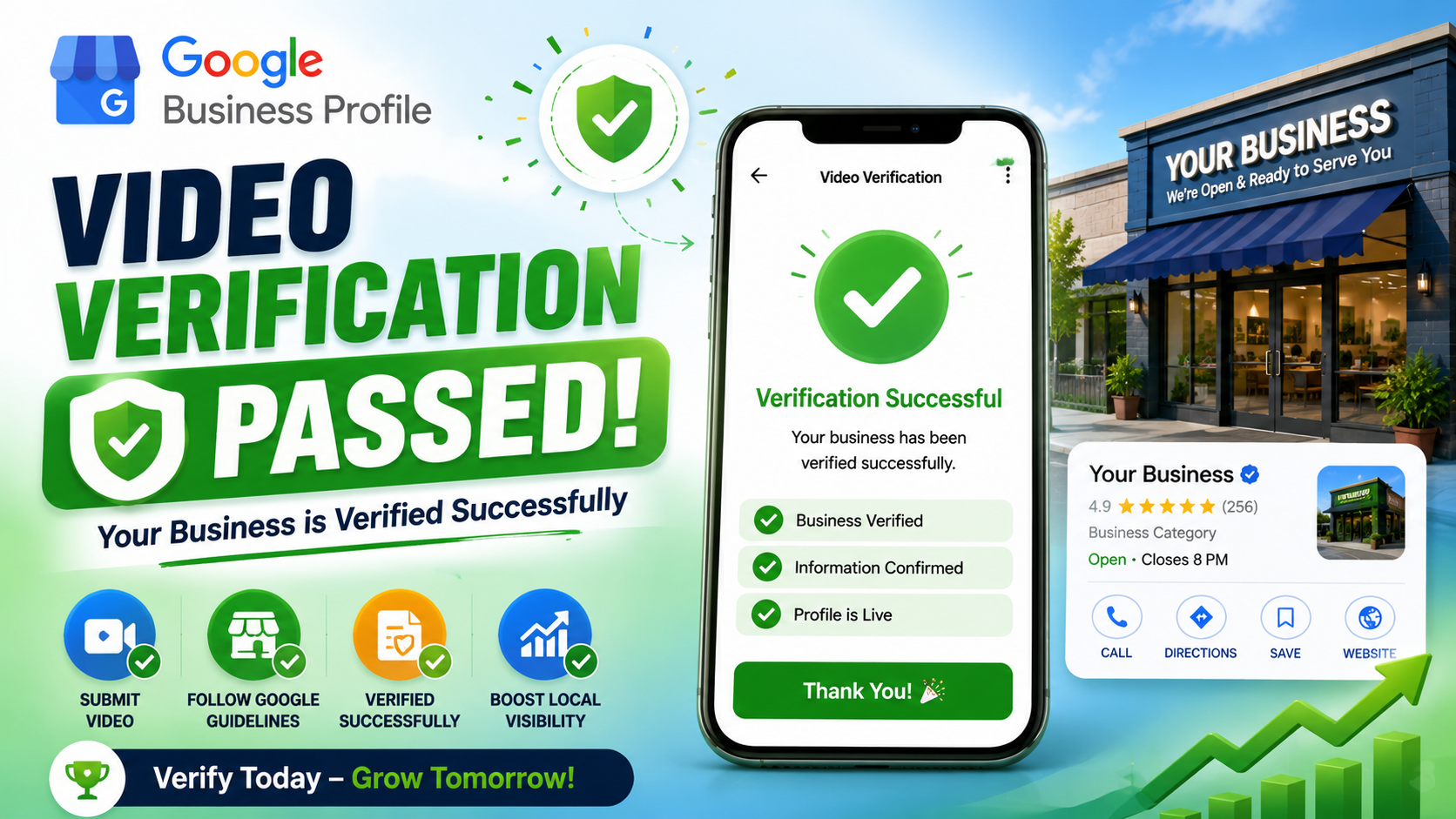
Best Practices to Pass Google Business Profile Video Verification on the First Attempt
Passing Google Business Profile Video Verification on your first attempt requires careful preparation and following Google’s verification guidelines. Many businesses experience Google Business Profile Video Verification Failed, Google Business Profile Verification Failed, or Google Business Profile Verification Rejected errors because important verification details are missing or the video does not clearly demonstrate ownership and business operations. By following these best practices, you can significantly improve your chances of successful verification.
Before recording, ensure that your Google Business Profile contains accurate business information, including your business name, address, phone number, website, and primary category. All details should match your official signage, website, and other business documents. Inconsistent information is one of the most common reasons verification requests are delayed or rejected.
When recording your verification video, begin outside the business and clearly capture the street name, building number, nearby landmarks, and your permanent business sign. Then continue recording without stopping or editing the video. Google expects a single, continuous recording that shows your business location and proves that you manage the business. Include actions such as unlocking the entrance, accessing an employee-only area, operating the cash register, using a work computer, or showing business inventory and equipment.
Technical preparation is equally important. Use the latest version of the Google Maps app, ensure your mobile device has sufficient storage, and connect to a stable internet connection before uploading the video. Record the video in good lighting, keep it under two minutes, and use a resolution of 720p or 1080p for clear visuals. Avoid recording customer faces or confidential documents, as this can delay the review process.
After submitting your video, monitor your profile for updates. If your status shows Google Business Profile Verification Pending, allow Google time to complete the review before submitting another verification request. If your verification is repeatedly rejected despite following all guidelines, contact Google Business Profile Support and request assistance or, if available, Google Business Profile Live Video Verification. Careful preparation, accurate business information, and a complete verification video are the best ways to avoid verification failures and get your Business Profile approved on the first attempt.
Key Takeaways for Successful Google Business Profile Video Verification
Successfully completing Google Business Profile Video Verification is essential for proving that your business is legitimate and managed by an authorized representative. While many businesses experience Google Business Profile Video Verification Failed, Google Business Profile Verification Failed, or Google Business Profile Verification Rejected messages, most verification issues can be avoided by following Google’s official requirements and preparing your verification video carefully.
The most important step is ensuring that your Google Business Profile contains accurate and consistent business information. Your business name, address, phone number, website, and primary category should match your real-world business and official online presence. During the verification process, record a single, continuous video that clearly shows your business location, street signs, building number, permanent business signage, and proof that you manage the business, such as unlocking the entrance, accessing employee-only areas, operating business equipment, or showing inventory. Avoid editing, trimming, or pausing the recording, as Google requires an uninterrupted video.
Technical preparation is equally important. Always use the latest version of the Google Maps app, connect to a stable internet connection, and ensure your mobile device has enough storage before uploading your video. Record in good lighting with a clear view of your business while protecting customer privacy by avoiding faces and confidential documents. If your status shows Google Business Profile Verification Pending, allow Google sufficient time to review your submission before attempting another upload, as repeated submissions may delay the process.
If your verification continues to fail despite following all guidelines, carefully review your Business Profile for inconsistencies and check for any notifications explaining the issue. When necessary, contact Google Business Profile Support and request additional assistance or Google Business Profile Live Video Verification, if available for your account. A live verification session can help resolve complex verification cases more efficiently.
By following Google’s verification requirements, maintaining accurate business information, and submitting a complete, high-quality verification video, you can greatly reduce the chances of Google Business Profile Video Verification Failed errors and improve your likelihood of successful verification. Careful preparation and patience are the keys to getting your business verified and visible on Google Search and Google Maps.